Storage: HDD and SSD
hard drive. hard disk. hard disk drive. HDD. SSD. solid-state drive. flash memory. disk. drive. persistent storage. what is storage in a computer. what is the difference between memory and storage. what is the difference between an HDD and an SSD. how does a hard drive work. why is an SSD faster than a hard drive. what is flash memory
⏱ 7 min read
In one sentence: Storage is the part of a computer that keeps programs and files even when the power is off; most computers use a hard disk drive (HDD), which stores bits as magnetic patterns on spinning disks, or a solid-state drive (SSD), which stores them in flash memory chips with no moving parts.
Why should I care?
Your photos and apps stay on your phone when you switch it off. That is storage at work. An iPhone 16, for example, has 128 GB, 256 GB or 512 GB of storage. (A GB, or gigabyte, is usually counted as a billion bytes. See KB, MB, GB: Measuring Data.)
Storage also explains why you must save your work. Unsaved work lives only in the computer's memory. If the power goes off, it is lost.
Analogy
In What is a Computer?, a cook worked in a kitchen. Memory was the table: the food in use right now. Storage was the fridge: the food kept for later.
At night, the table is cleared, but the food in the fridge is still there the next morning. Switching off the computer clears memory, but storage keeps everything.
Where the analogy breaks down: a fridge needs electricity to keep food fresh. Storage does not need any power to keep its bits. Also, storage does not keep things forever: storage devices can break or wear out. So keep extra copies of important files.
How it actually works
Memory and storage
A computer has two places to keep bits:
- Memory, or RAM, is very fast. It holds the programs that are running and the information they use. But it keeps its bits only while it has power.
- Storage is slower, but persistent: it keeps its bits even without power. It holds all your files and programs, even unused ones.
When you open a photo, the computer copies its bytes from storage into memory. When you save, it writes them back to storage.
A storage device is often called a drive. There are two common kinds.
Hard disk drive (HDD)
A hard disk drive (HDD, or "hard drive") stores bits as a magnetic pattern on spinning disks.
- Inside are one or more flat, round disks called platters. They are coated with a magnetic material.
- The platters spin very fast. In 2019, most hard drives sold for home computers turned 5,400 or 7,200 times per minute.
- A head on a moving arm reads and writes the bits. It floats a tiny distance above the platter, without touching it.
- To write, the head makes small areas of the platter magnetic, pointing one way or the other. The bits are stored in the pattern of these directions.
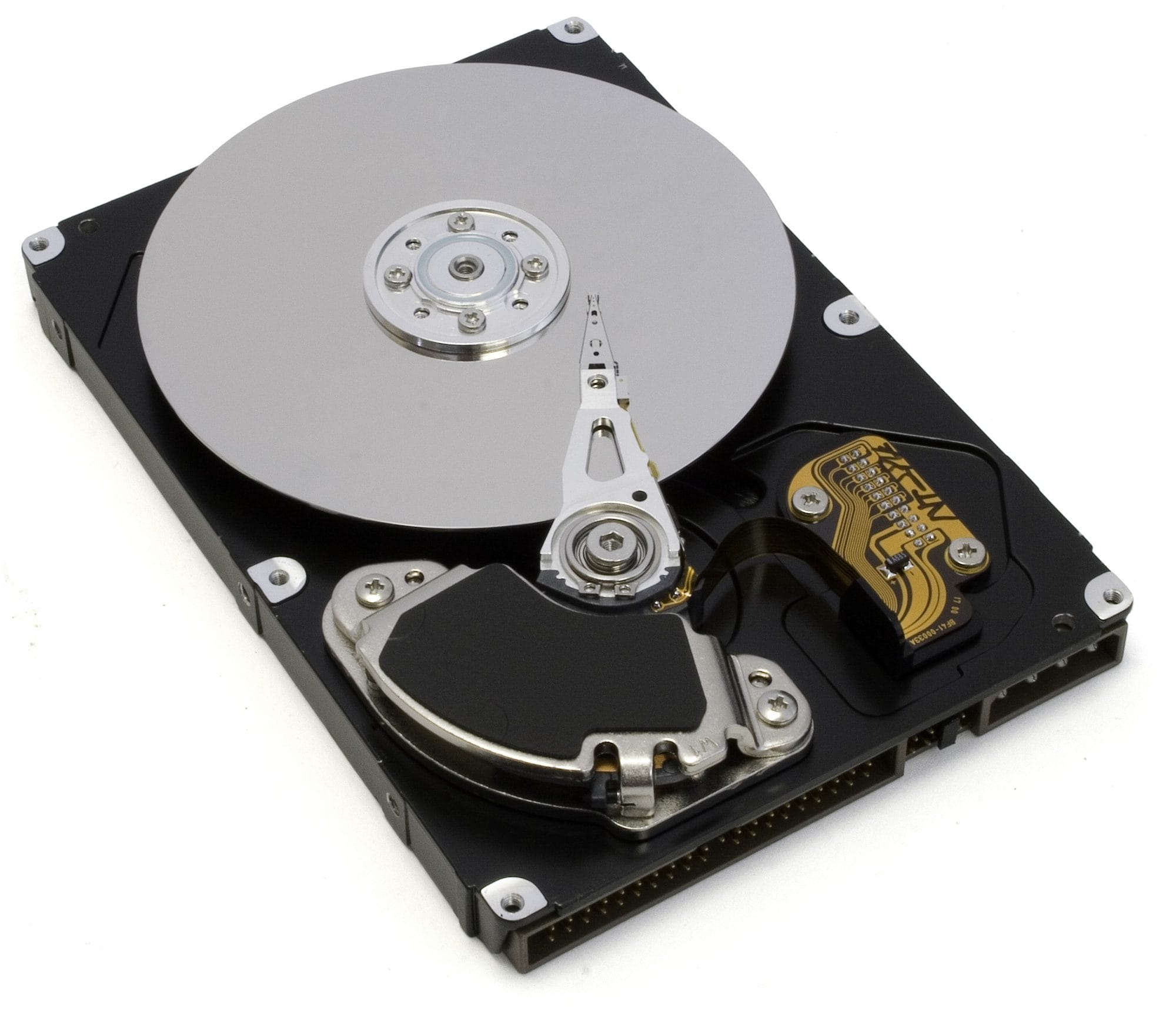 PlatterArmHeadClose-up: the head at the tip of the arm

Before the head can read, the arm must move it to the right ring of the platter. Then the drive must wait until the right place spins under the head. This takes time.
Solid-state drive (SSD)
A solid-state drive (SSD) has no moving parts. It stores bits in flash memory chips. Each tiny storage place is called a cell. In the simplest kind of flash, a cell holds an electric charge, or no charge: charged or not charged stands for 1 or 0. Flash keeps its bits without power.
Because nothing has to move, an SSD can find data almost at once. Phones and digital cameras also use flash memory.
HDD and SSD side by side
| HDD | SSD | |
|---|---|---|
| How bits are kept | magnetic patterns on spinning platters | electric charge in flash cells |
| Moving parts | yes | no |
| Speed | slower | faster |
| Cost for each byte | lower | higher |
| Noise | some sound | no sound |
Flash cells wear a little every time they are written. So an SSD can be written only a limited number of times. Hard drives have a different weak point: their moving parts can be damaged.
How it came to be
The Computer History Museum calls IBM's Model 350 the first commercial hard disk drive. It was part of the IBM 305 RAMAC computer system. In June 1956, IBM shipped an early unit to Zellerbach Paper in San Francisco. Regular production shipments began in 1957.
It stored about 5 million characters on 50 disks, each 24 inches (about 61 cm) across. The whole unit was about 5 feet (1.5 m) high. It was leased (rented out) for $750 per month.
Flash memory was invented by Fujio Masuoka at the company Toshiba in the 1980s. (Computer History Museum pages give two years: 1980 and 1984.) In 1991, the company SunDisk (now SanDisk) built a test version of a flash SSD for IBM. Since then, SSDs have become much more common, and they are replacing hard drives in many computers.
🧪 Try it in your browser
Websites can save some information in your browser, which keeps it on your drive. Each site gets a quota: a limit on how much it may save. The browser bases this limit on the size of your drive.
You will use the browser console, the tool from Byte. You need a computer with a keyboard.
Safety rule: only type code in the console that you understand or that comes from a source you trust. Never paste code that a stranger sends you. This code only reads two numbers.
In Chrome, Edge or Firefox, open
https://example.comin a normal window (not a private or Incognito window).Open the console:
- Windows: press
Ctrl+Shift+J(in Firefox:Ctrl+Shift+K) - Mac: press
Cmd+Option+J(in Firefox:Cmd+Option+K)
- Windows: press
Click the empty line at the bottom. Type this line yourself (some browsers block pasting in the console), then press
Enter(on a Mac keyboard:Return):navigator.storage.estimate().then(console.log)You should see text in curly brackets
{ }(you may need to click a small arrow to open it). Look for two numbers, in bytes. Other words, such asPromise, are normal.usage: how much this site saves now. On example.com it is probably0.quota: how much this site may save. It is a very long number.
Type this line and press
Enter(orReturn). It divides the quota by one billion (1000 ** 3), to change bytes into GB:navigator.storage.estimate().then(e => console.log(e.quota / 1000 ** 3))Then close the tab.
What you should see: a number of GB, probably with many decimal digits. This is not your drive's size. In Chrome and Edge, it can be up to 60% of your drive's total size. In Firefox, on a site like this one, it can be up to 10% of the drive, but not more than about 10.7 GB. The numbers are estimates, not exact.
Common misunderstandings
- "Memory and storage are the same thing." No. Memory (RAM) is fast and forgets everything when the power goes off. Storage is slower and keeps your files.
- "An SSD is a kind of RAM, because both are chips." No. An SSD keeps its bits without power. RAM does not.
Recap
- Storage keeps programs and files when the power is off. Memory (RAM) does not.
- A hard disk drive (HDD) stores bits as magnetic patterns on spinning platters, read by a head on a moving arm.
- A solid-state drive (SSD) stores bits as electric charge in flash chips. It has no moving parts, so it is faster, but it costs more for each byte.
Sources
- Stanford CS101, Computer Hardware: https://web.stanford.edu/class/cs101/hardware-1.html
- Wikipedia, Hard disk drive: https://en.wikipedia.org/wiki/Hard_disk_drive
- Hitachi Vantara, What is a Solid-State Drive (SSD)?: https://www.hitachivantara.com/en-us/insights/faq/what-is-solid-state-drive
- Computer History Museum, 1956: First commercial hard disk drive shipped: https://www.computerhistory.org/storageengine/first-commercial-hard-disk-drive-shipped/
- Computer History Museum, 1991: Solid State Drive module demonstrated: https://www.computerhistory.org/storageengine/solid-state-drive-module-demonstrated/
- Computer History Museum, Inventing Memory, but Feeling Forgotten: https://www.computerhistory.org/revolution/memory-storage/8/256
- MDN Web Docs, StorageManager: estimate(): https://developer.mozilla.org/en-US/docs/Web/API/StorageManager/estimate
- MDN Web Docs, Storage quotas and eviction criteria: https://developer.mozilla.org/en-US/docs/Web/API/Storage_API/Storage_quotas_and_eviction_criteria
- Chrome for Developers, Open Chrome DevTools: https://developer.chrome.com/docs/devtools/open
- Microsoft Edge DevTools, Keyboard shortcuts: https://learn.microsoft.com/en-us/microsoft-edge/devtools/shortcuts/
- Firefox DevTools User Docs, Web Console: https://firefox-source-docs.mozilla.org/devtools-user/web_console/index.html
- Chrome for Developers, Self-XSS protection: https://developer.chrome.com/blog/self-xss
- Apple Support, How iOS and macOS report storage capacity: https://support.apple.com/en-us/102119
- Apple Support, iPhone 16 Tech Specs: https://support.apple.com/en-us/121029
- Apple Support, Mac keyboard shortcuts: https://support.apple.com/en-us/102650
Written with AI · Reviewed by AI · Not yet checked by a human
Found a mistake, or something you did not understand? Report a problem.